




1 min read
|
03-30-2026
Import & Export Magento 2 Gift Cards in the Blink of an Eye
Vinh Jacker
|
11-27-2025

After creating and selling gift cards in your Magento 2 store, the next step is managing them efficiently, especially as demand increases during the holiday season.
To fully unlock their potential, bulk management becomes essential. Magento 2 allows merchants to import and export gift cards in large quantities, helping you support marketing campaigns, partner programs, offline events, or store migrations without manual work.
In this guide, you’ll learn how to import and export Magento 2 gift cards for different purposes, using the Mageplaza Gift Cards extension to streamline the entire process.
How to Import Gift Cards in Magento 2
With Mageplaza’s Gift Cards extension, you can easily import gift vouchers into your Magento 2 store in just a few clicks. This is especially useful when launching large campaigns, migrating from another system, partnering with offline stores, or distributing bulk gift cards for promotions. Importing in bulk saves time, reduces manual errors, and ensures all codes are ready to use immediately.
Follow the steps below to complete the import process:
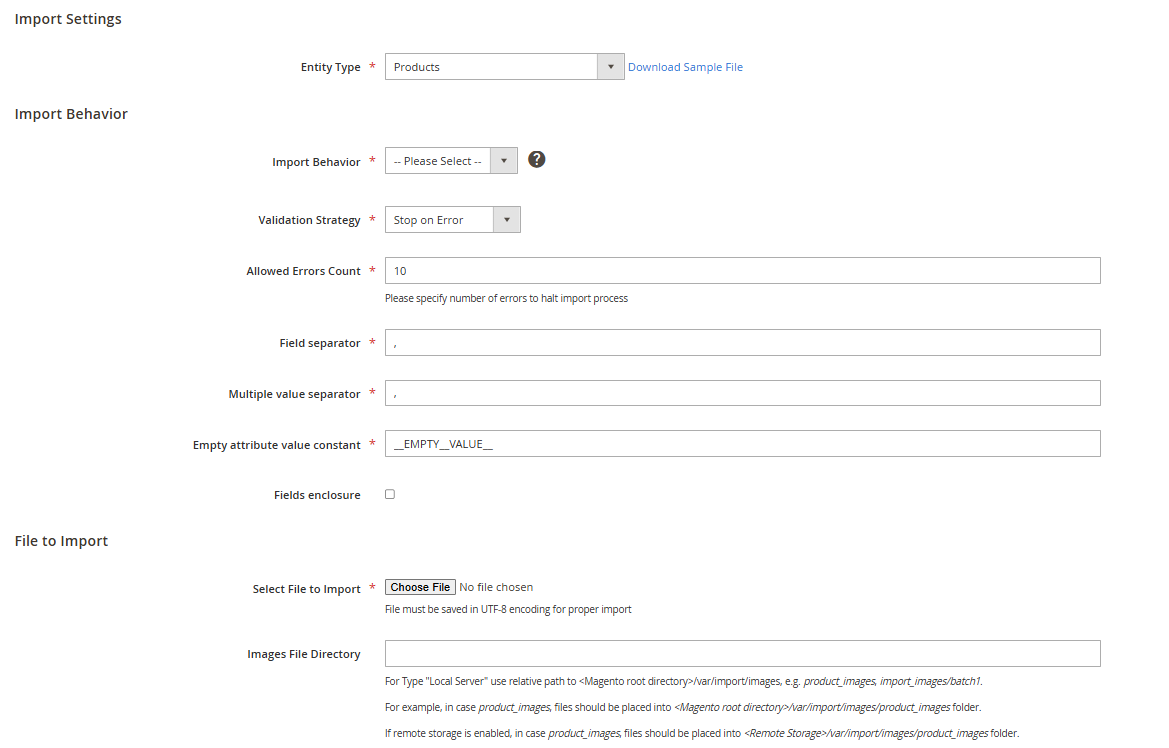
- Go to
System > Import > Entity Type: Mageplaza Gift Card Code. - Choose
Import Behavior(Add/Update/Replace/Delete). Validation Strategy: Stop on Error or Skip error entriesAllowed Errors Count: Enter the number of errors to stop the import.- Complete other format fields such as Field separator, Multiple value separator, Empty attribute value constant, Fields enclosure.
- Upload CSV file with gift card data.
Note: You can download this sample file & view how the data should look like:

| Attribute Name | Reference | Values | Value Example |
|---|---|---|---|
| code | Gift Card Code(s) | Gift Code | TEST-ABCD-1234 |
| balance | Gift Card value balance | Value of the card | 100 |
| status | Gift Card Status |
1 - Active 2 - Inactive 3 - Pending 4 - Used 5 - Expired 6 - Canceled |
1 |
| Can_redeem |
1 - Can Redeem 2 - Cannot Redeem |
1 | |
| Store_id | Store View ID | Store View ID | 1 |
| Pool_id | Gift Card Pools ID |
Gift Card Pools ID. If empty, it is not included in the pool. |
1 |
| Template_id | Gift Card Template |
Gift Card Template in Manage Templates. If empty, there is no template for the gift card. |
1 |
| Expired_at | Gift card expiration date. |
Gift card expiration date. If empty, there is no expiration date of the gift card. |
2017-11-27 |
- Click Check data to make sure they are valid.
- Click Import to finish the process.
Tips:
- Validate gift card attributes (amount, expiration date, code pattern).
- Ensure correct column headers to avoid data loss.
Test gift card import in our live demo
How to Export Gift Cards in Magento 2
Exporting gift cards is just as simple, as the default Magento 2 gift card configuration already has built-in export features. Whether you want to analyze performance, fulfill offline campaign needs, or move data to another system, exporting gift cards gives you full control. It helps you track usage, verify remaining balances, and manage large promotions without digging through individual records.
Here’s how to export your gift cards quickly:
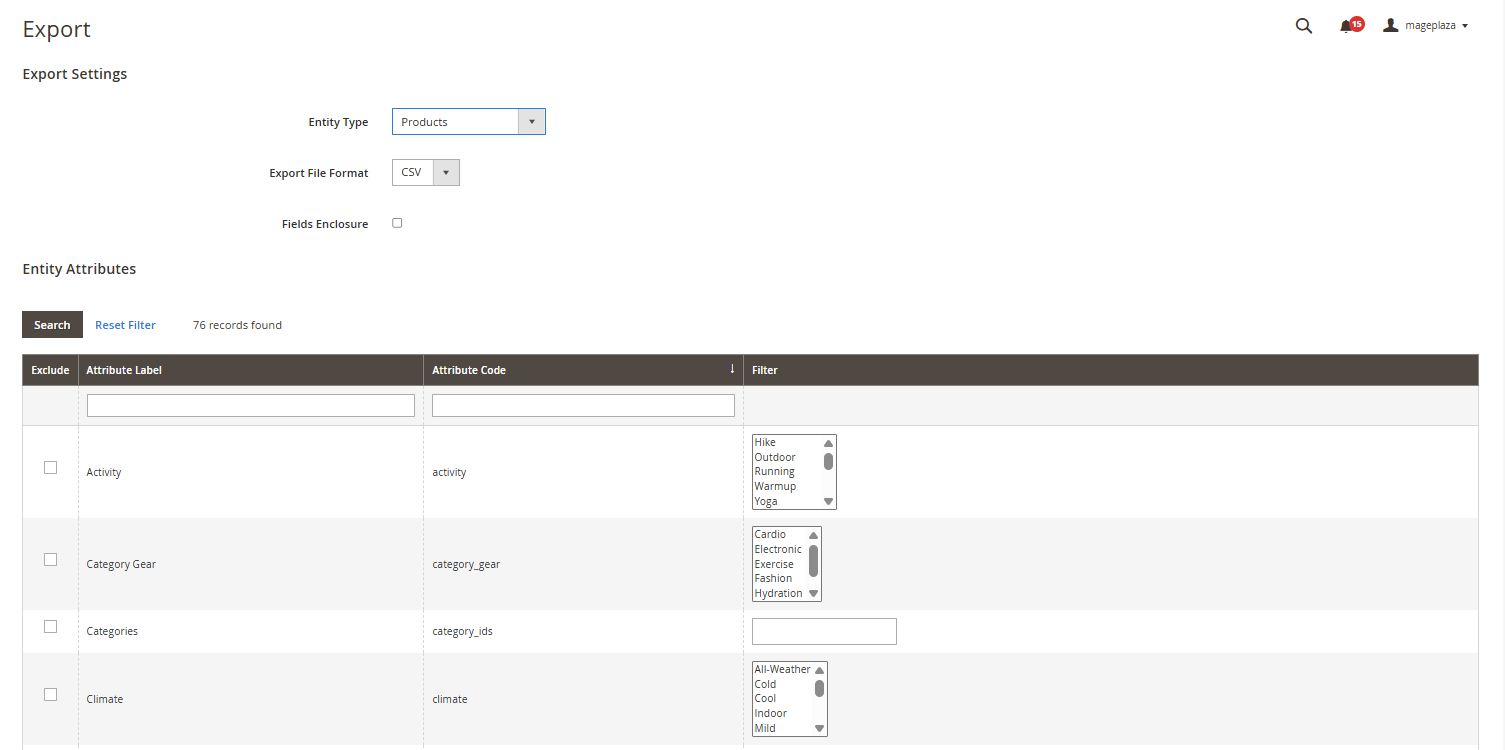
- Go to
System > Export > Entity Type: Products. - Use filters to select only Gift Card products.
- Customize output columns (SKU, Gift Code Pattern, Expiration Date).
- Click
Continueto download CSV.
Tips:
- Filter by category or attribute to avoid exporting all products.
- Keep CSV files versioned for easy rollback.
- Use exports for cross-store sync or accounting reports.
Simplify Your Gift Card Workflow
Gift cards become even more powerful when you can manage them efficiently behind the scenes. With Magento 2’s import and export capabilities, store owners can quickly upload large batches of gift cards, migrate existing ones from other systems, or distribute codes to partners and campaigns without tedious manual entry. This makes it easier to launch promotions, support offline events, and maintain accurate gift card data across the store.
Table of content

Jacker is the Chief Technology Officer (CTO) at Mageplaza, bringing over 10 years of experience in Magento, Shopify, and other eCommerce platforms. With deep technical expertise, he has led numerous successful projects, optimizing and scaling online stores for global brands. Beyond his work in eCommerce development, he is passionate about running and swimming.
Related Post

Magento 2.4.9 Beta Release: What's New?
Magento 2.4.9 beta is here. Stay up to date with every release milestone with this regularly updated guide.
11 mins read
|
03-17-2026

Google Analytics Website Traffic: The A–Z Guide for Magento 2 Store Owners
Learn how to analyze website traffic in Google Analytics 4, identify high-quality traffic sources, and grow your Magento 2 store with data-driven insights.
18 mins read
|
03-17-2026

The Complete Guide to UTM Parameters & Google Analytics for Magento website
Master UTM parameters and Google Analytics for Magento. Track traffic sources, measure campaign performance, and practical tips to use it for better business decisions.
9 mins read
|
10-05-2025

How to implement Cookie Consent for GTM & Google Analytics in Magento Under GDPR?
Implement cookie consent for GTM & GA4 in Magento under GDPR. Step-by-step guide using Google Consent Mode v2 to avoid fines and maintain analytics.
15 mins read
|
02-27-2026

Speed vs. Sales: Comparing Hyvä Checkout and Mageplaza One Step Checkout
Learn how Hyvä Checkout and Mageplaza One Step Checkout impact order completion rates and revenue growth.
8 mins read
|
02-25-2026
1 min read
|
03-30-2026
Magento 2.4.9 Beta Release: What's New?
Magento 2.4.9 beta is here. Stay up to date with every release milestone with this regularly updated guide.
11 mins read
|
03-17-2026
Google Analytics Website Traffic: The A–Z Guide for Magento 2 Store Owners
Learn how to analyze website traffic in Google Analytics 4, identify high-quality traffic sources, and grow your Magento 2 store with data-driven insights.
18 mins read
|
03-17-2026
The Complete Guide to UTM Parameters & Google Analytics for Magento website
Master UTM parameters and Google Analytics for Magento. Track traffic sources, measure campaign performance, and practical tips to use it for better business decisions.
9 mins read
|
10-05-2025
How to implement Cookie Consent for GTM & Google Analytics in Magento Under GDPR?
Implement cookie consent for GTM & GA4 in Magento under GDPR. Step-by-step guide using Google Consent Mode v2 to avoid fines and maintain analytics.
15 mins read
|
02-27-2026
Speed vs. Sales: Comparing Hyvä Checkout and Mageplaza One Step Checkout
Learn how Hyvä Checkout and Mageplaza One Step Checkout impact order completion rates and revenue growth.
8 mins read
|
02-25-2026